 01
People
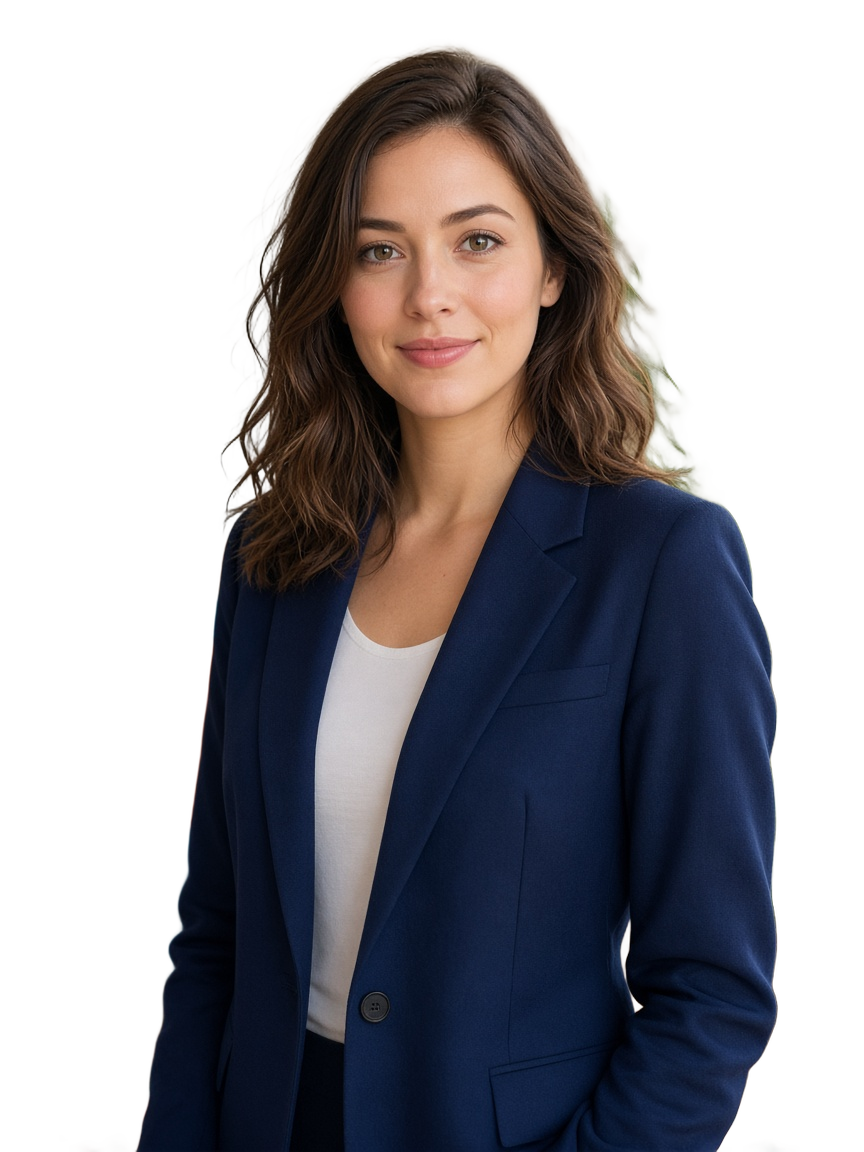
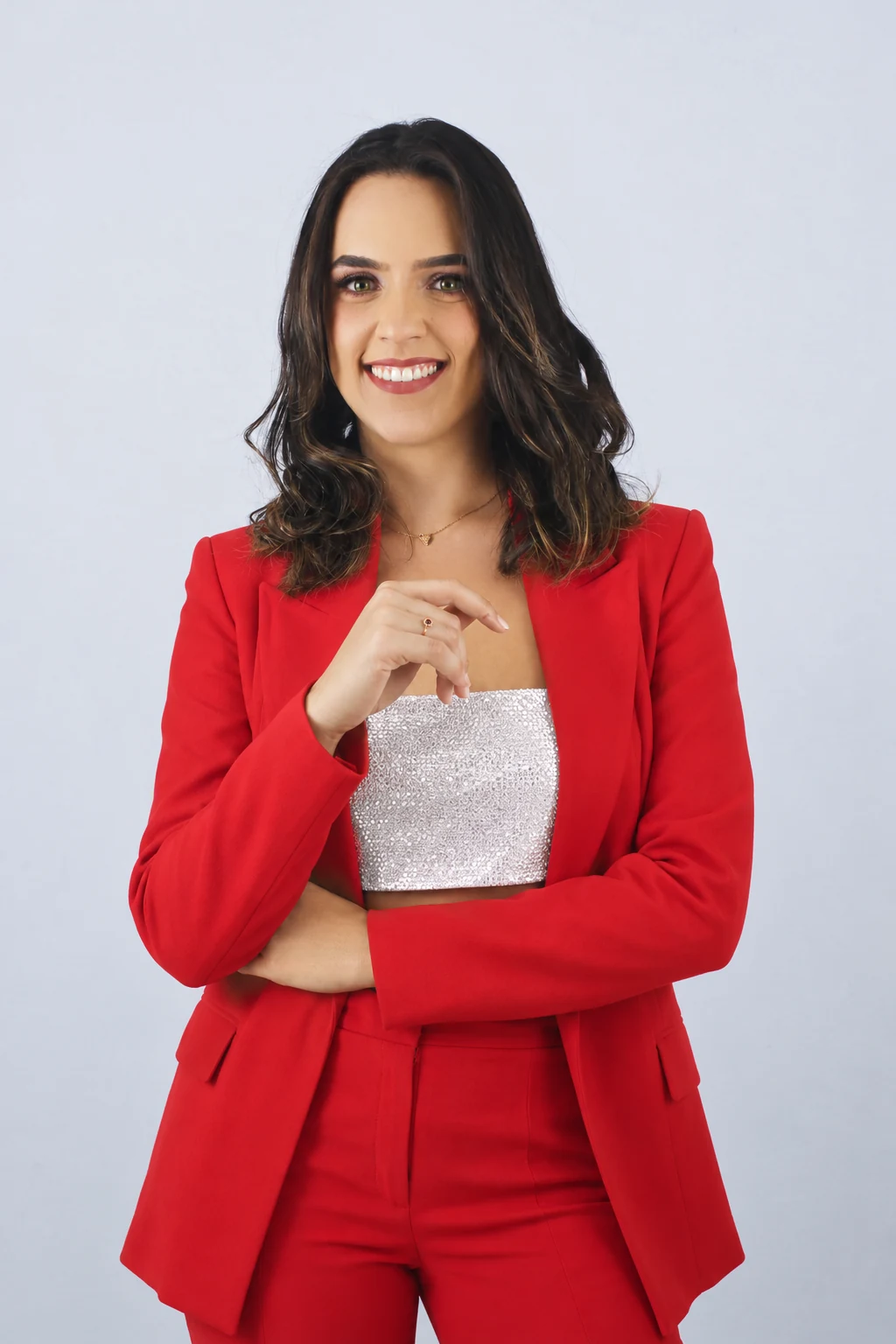
A clear portrait against a simple backdrop.
Make PNG BGYVD STUDIO
Remove a plain backdrop locally, or request an AI cutout with YVD credits. Compare the edges and keep a transparent or white PNG.
Runs on this device · no upload · plain backgrounds work best · up to 12 MB
PNG · longest edge 2400 px

Sample from the reference site. Your result will vary.
View sample sourceTHE SCENE COLLECTION
Remove a plain backdrop locally, or request an AI cutout with YVD credits. Compare the edges and keep a transparent or white PNG.
01A clear portrait against a simple backdrop.
 02
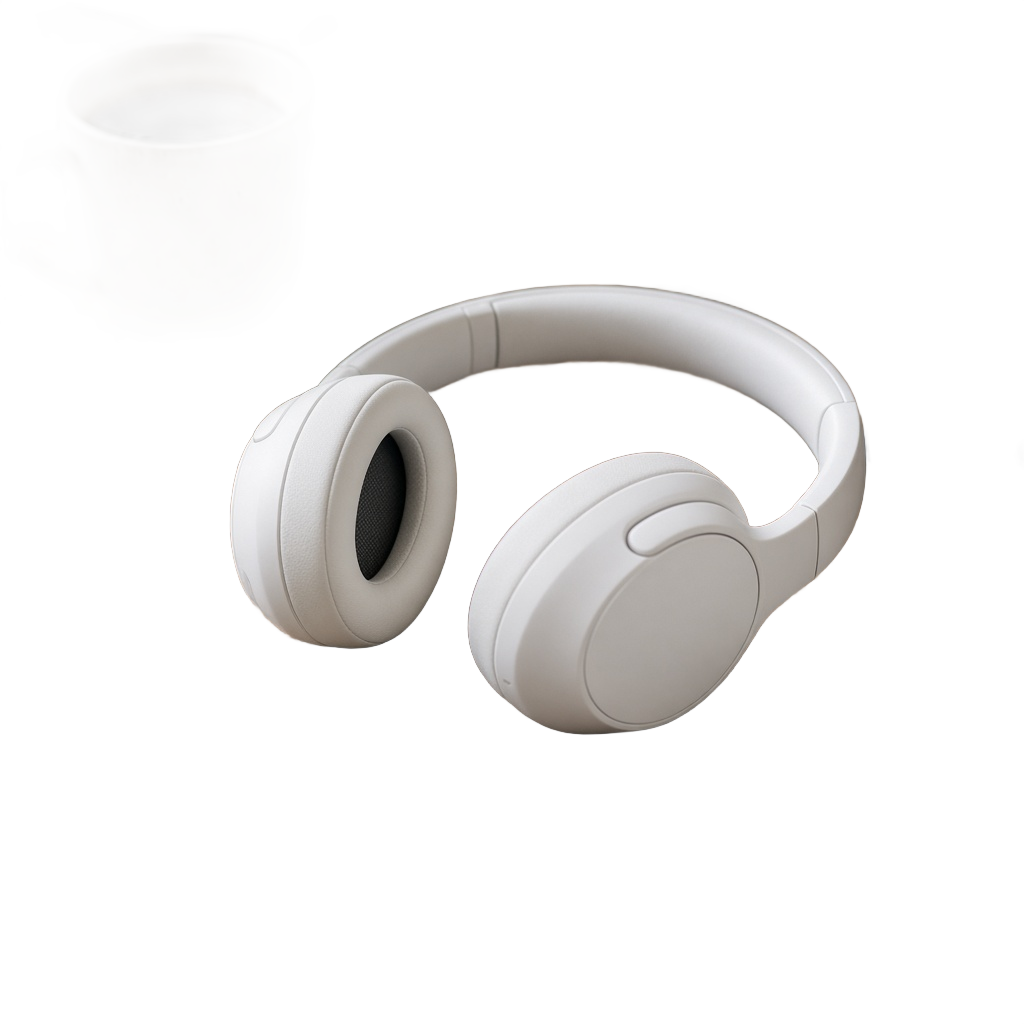
A product silhouette ready for a new layout.
 03
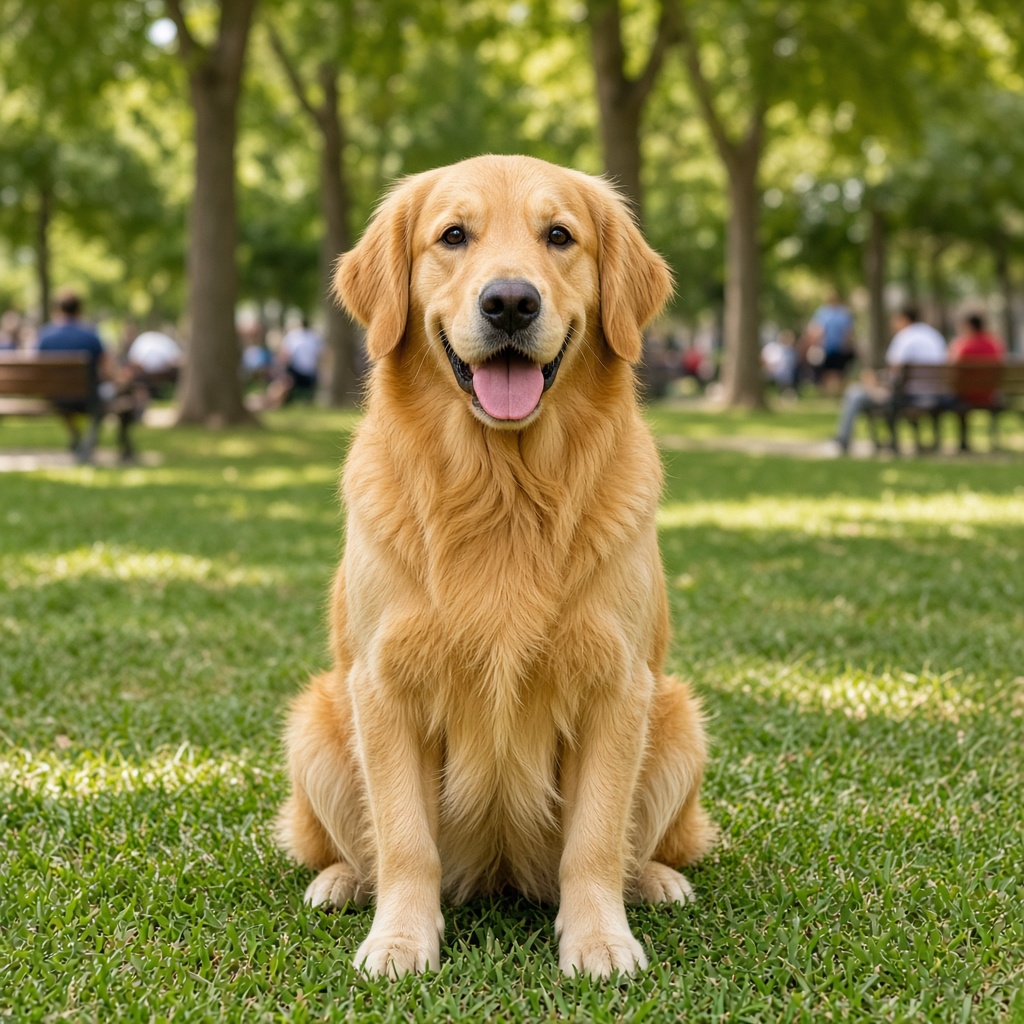
Check fur against the checkerboard.
 04
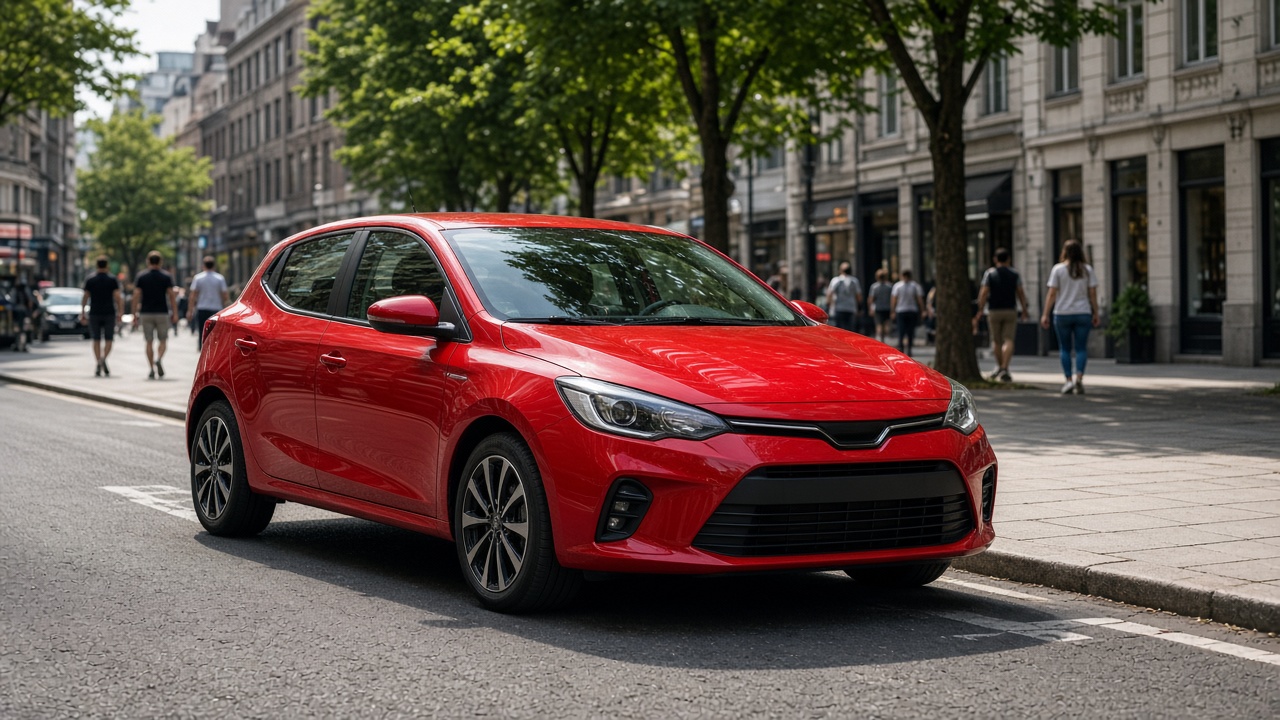
Keep mirrors and wheel edges in view.
Sample from the reference site. Your result will vary. View sample source ↗
YVD / Make PNG BGBEHIND THE IDEA
Local mode removes connected background colors from the image edges, keeping the work on your device. AI mode sends a GPT Image 2.5 request after you confirm the credit quote and asks for a transparent PNG; it may redraw fine details. Choose the method that fits your photo, then inspect hair, edges and small product markings.
CreateStart with a backdrop that contrasts with the subject. Increase tolerance gradually; too much can remove light fabric or pale fur. Use white and checkerboard previews to inspect the edges.
YOUR NEXT TAKE
Add the photos requested by your scene. Check their order and framing.
Choose your scene or adjustment settings. For AI generation, review the total credit quote before confirming.
Inspect the finished details and download the version you want to keep.
CLEAR BEFORE YOU CREATE
Local mode removes connected background colors from the image edges, keeping the work on your device. AI mode sends a GPT Image 2.5 request after you confirm the credit quote and asks for a transparent PNG; it may redraw fine details. Choose the method that fits your photo, then inspect hair, edges and small product markings.
Runs on this device · no upload · plain backgrounds work best · up to 12 MB
Remove backgroundNo. The local cutout runs in your browser and exports a real PNG with an alpha channel. It works best with connected, fairly uniform backgrounds.
No. Local cutout runs in your browser and exports a PNG with a real alpha channel. Local results are not saved to My creations, so download a copy before leaving the page.
AI cutout sends your reference to GPT Image 2.5 only after you sign in, review the credit quote and confirm. It requests a transparent PNG, but may redraw the subject. Local cutout stays on your device and uses no credits.
Yes. In local mode, choose White after removing the background. The transparent mask is retained so you can switch back. Local exports have a maximum long edge of 2400 pixels.
KEEP EXPLORING
Explore more photo and video scenes in the same YVD studio.
 A2O Lite Neon AI
 Dame Hombro AI
 Neon Dance AI
 AI Clothes Changer
 Bby Wow AI
 Crazy Frog AI
 PumpkinMorph
 KDA Firestarter AI
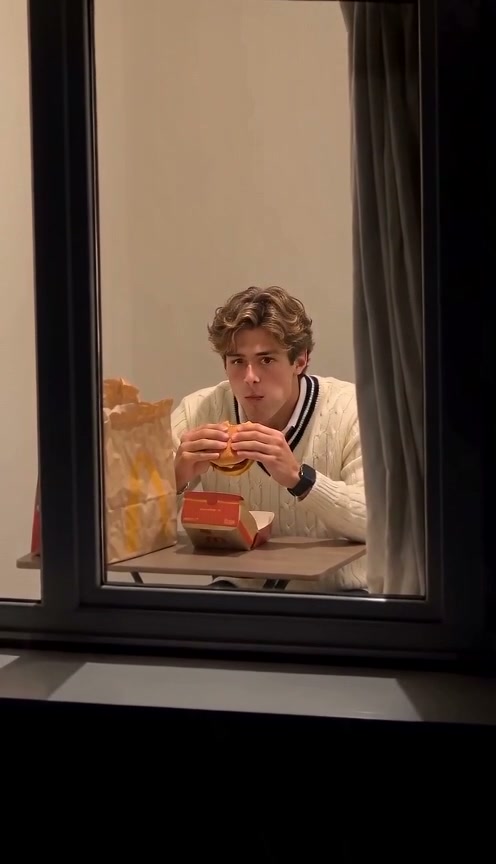 Window Peeper AI
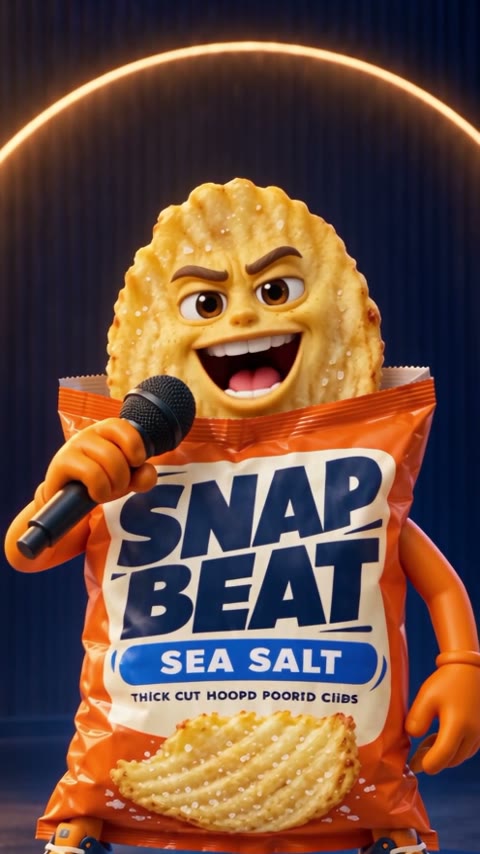 RapAd Studio
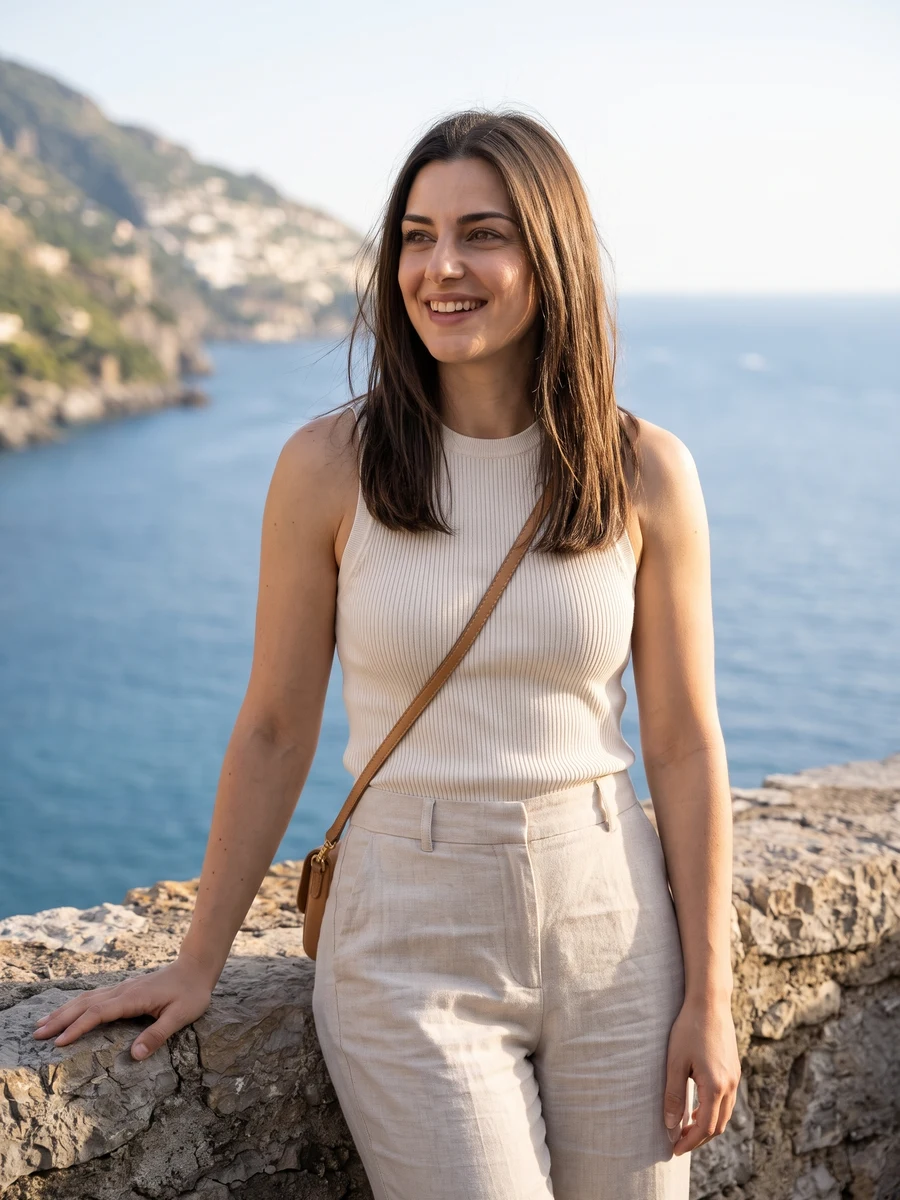 Heretake AI Photoshoot
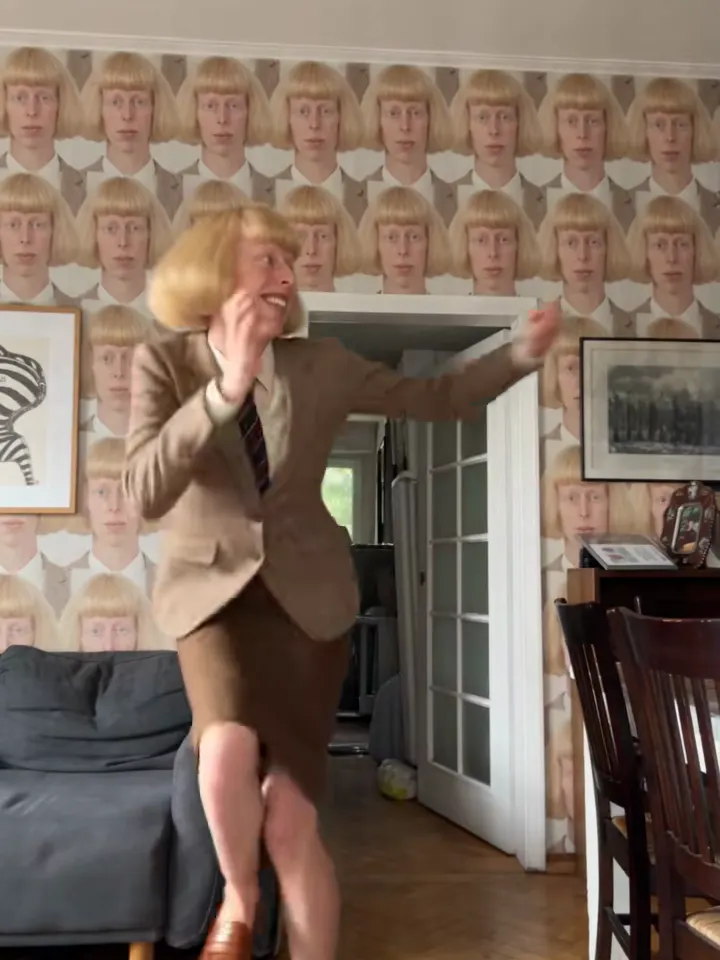 Toc Toc Dance AI
 Halloween AI
 Christmas AI
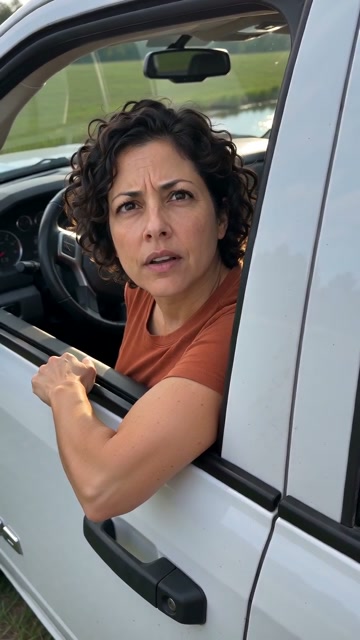 Hit the Road Dude AI
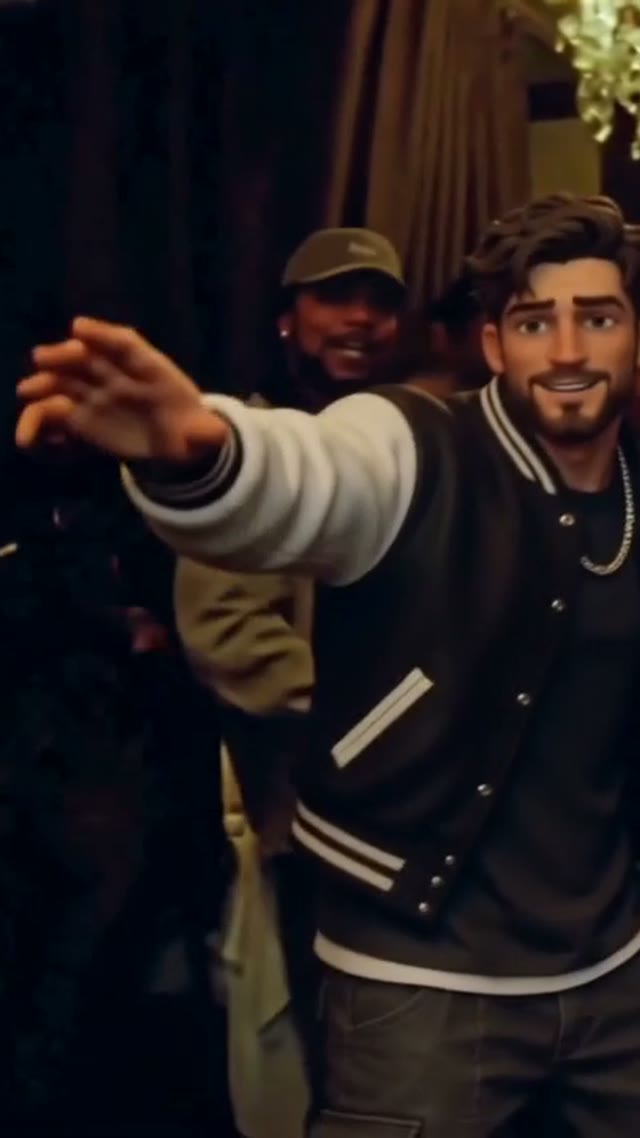 AI Rap Video
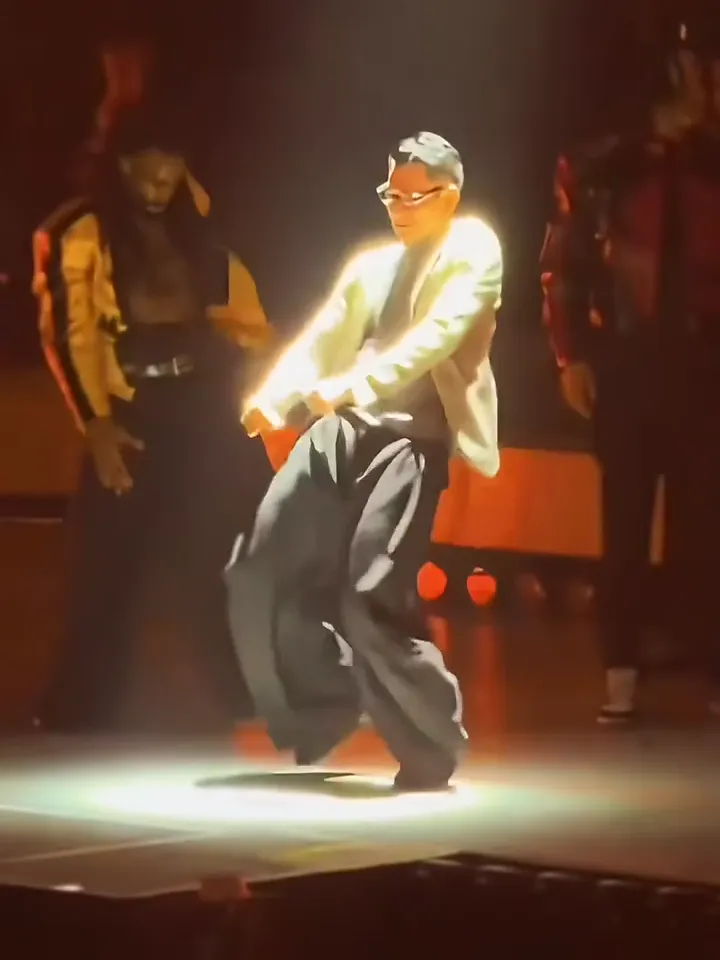 Talk Dirty AI Dance
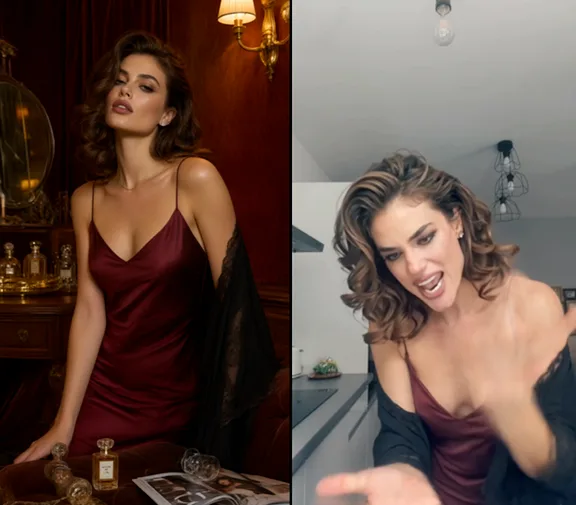 Angry Dance Filter
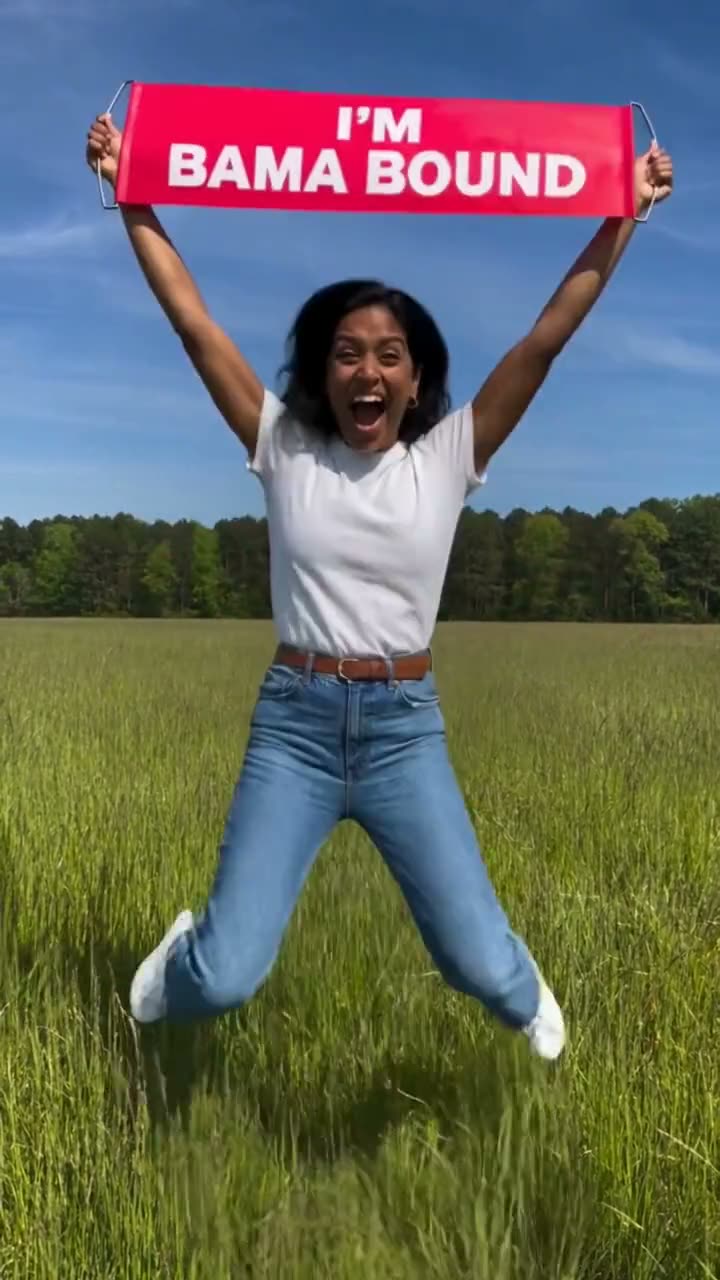 Bama Bound AI
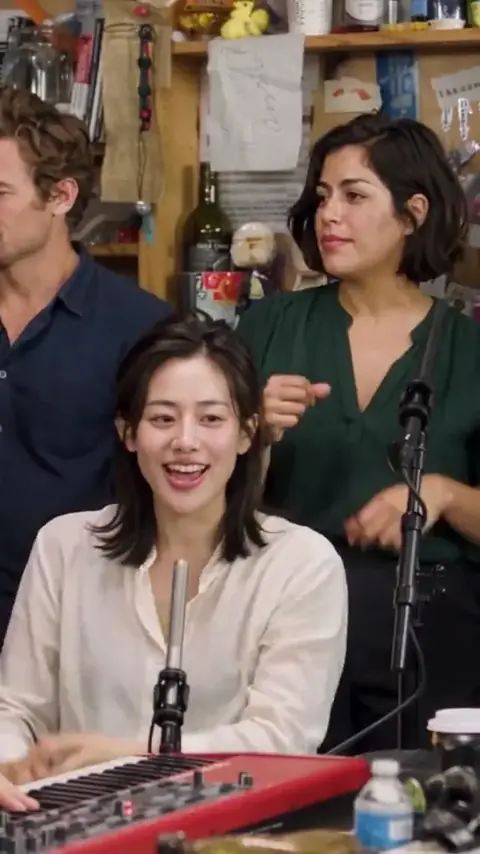 Tiny Desk Outstanding AI
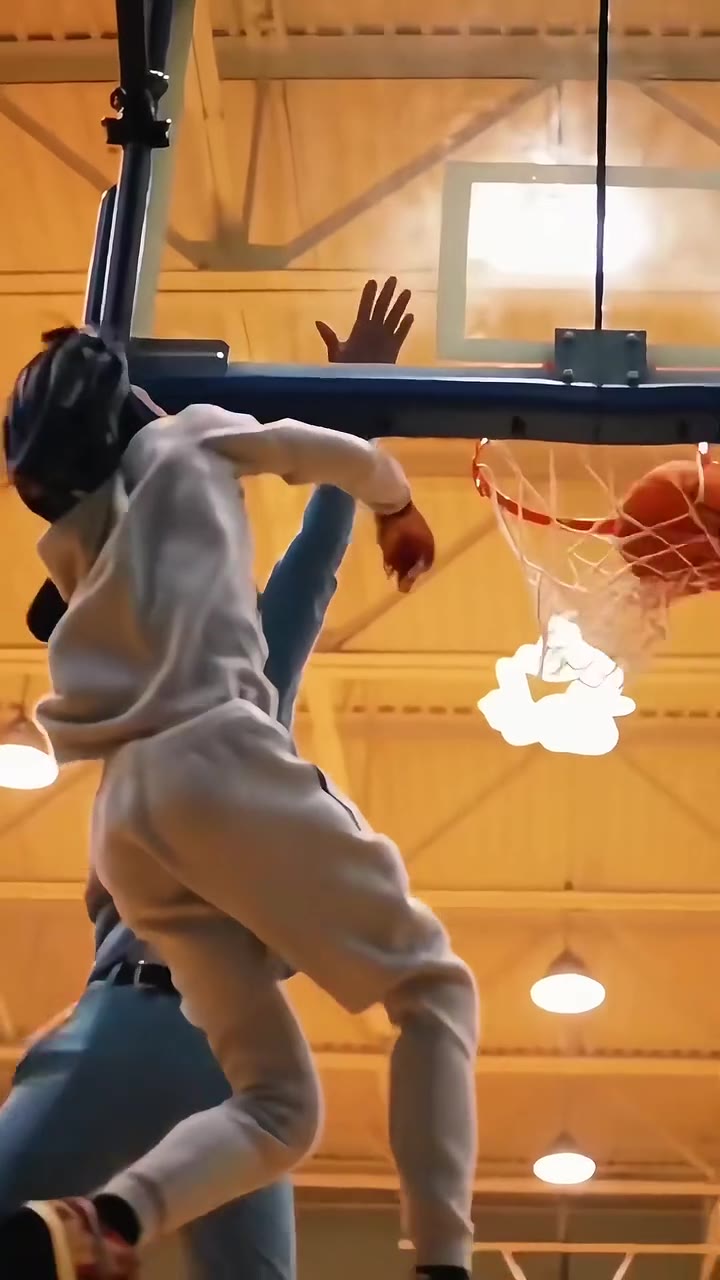 Basketball Dunk AI
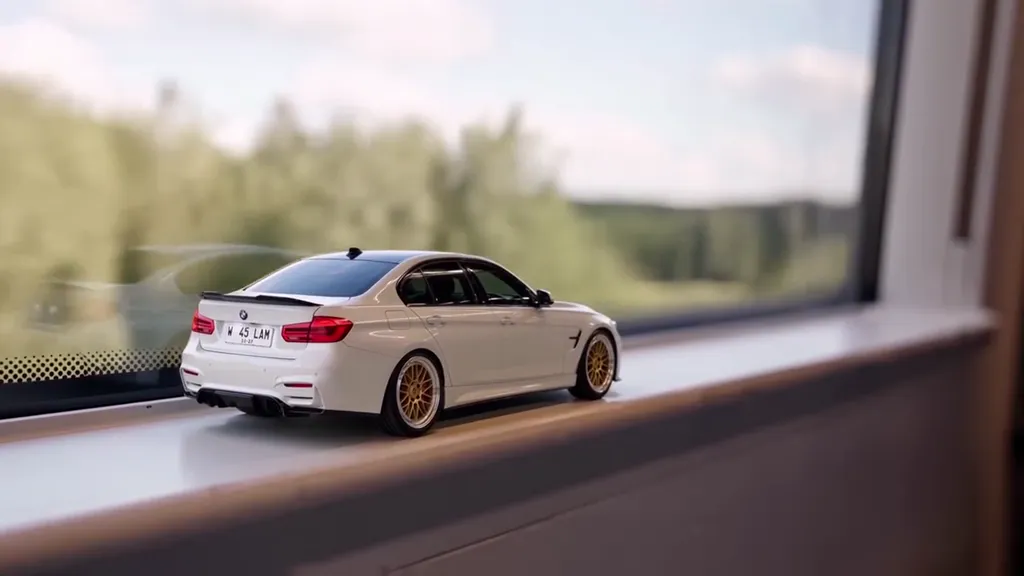 Toy Car to Real Car AI
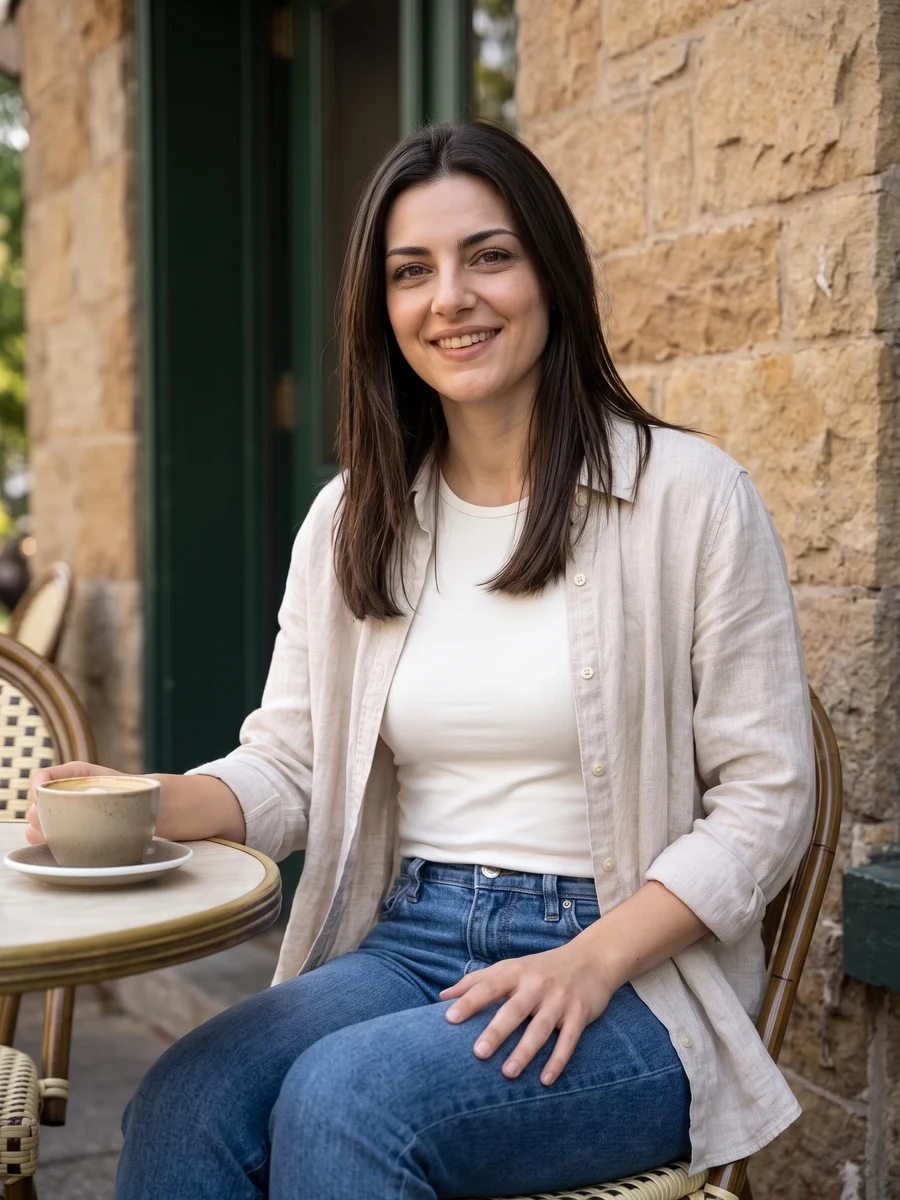 Lifestyle Portraits
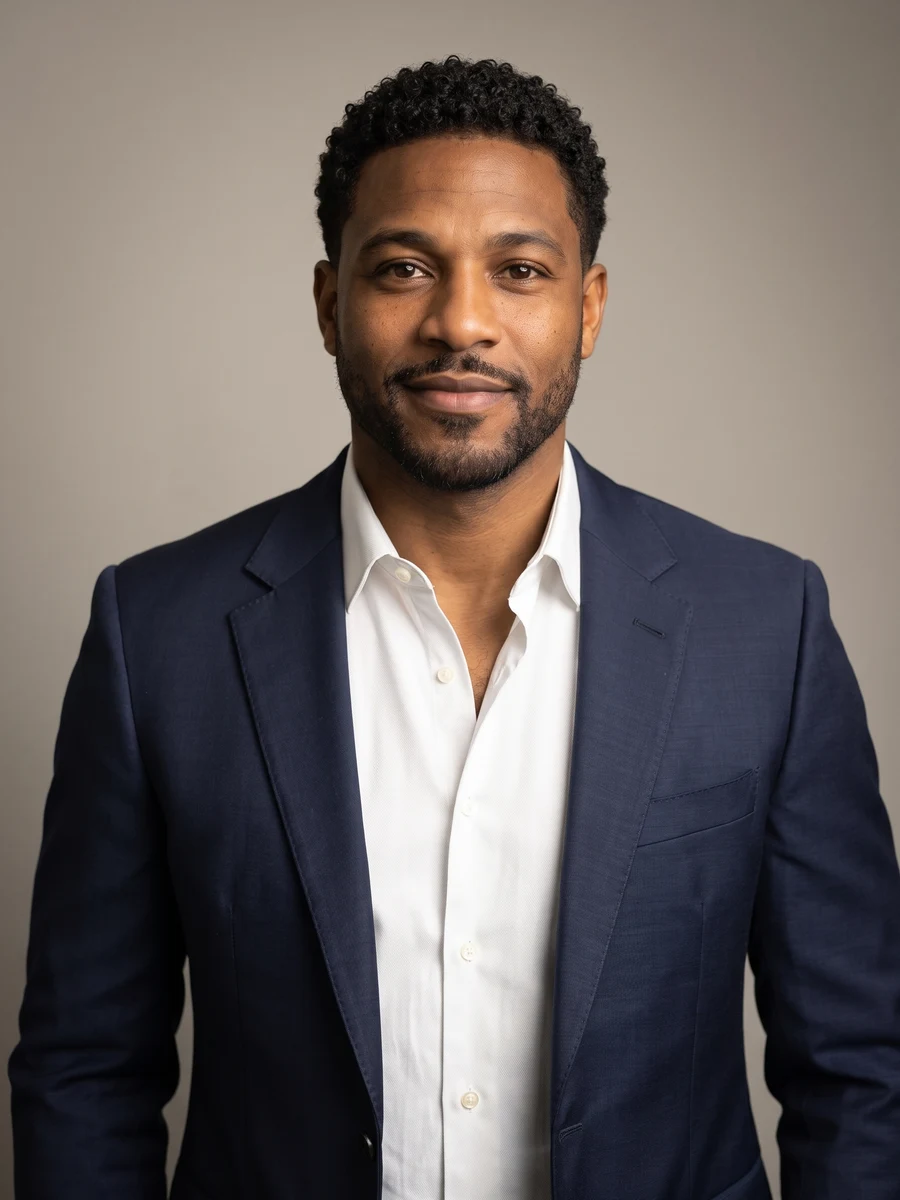 Professional Headshots
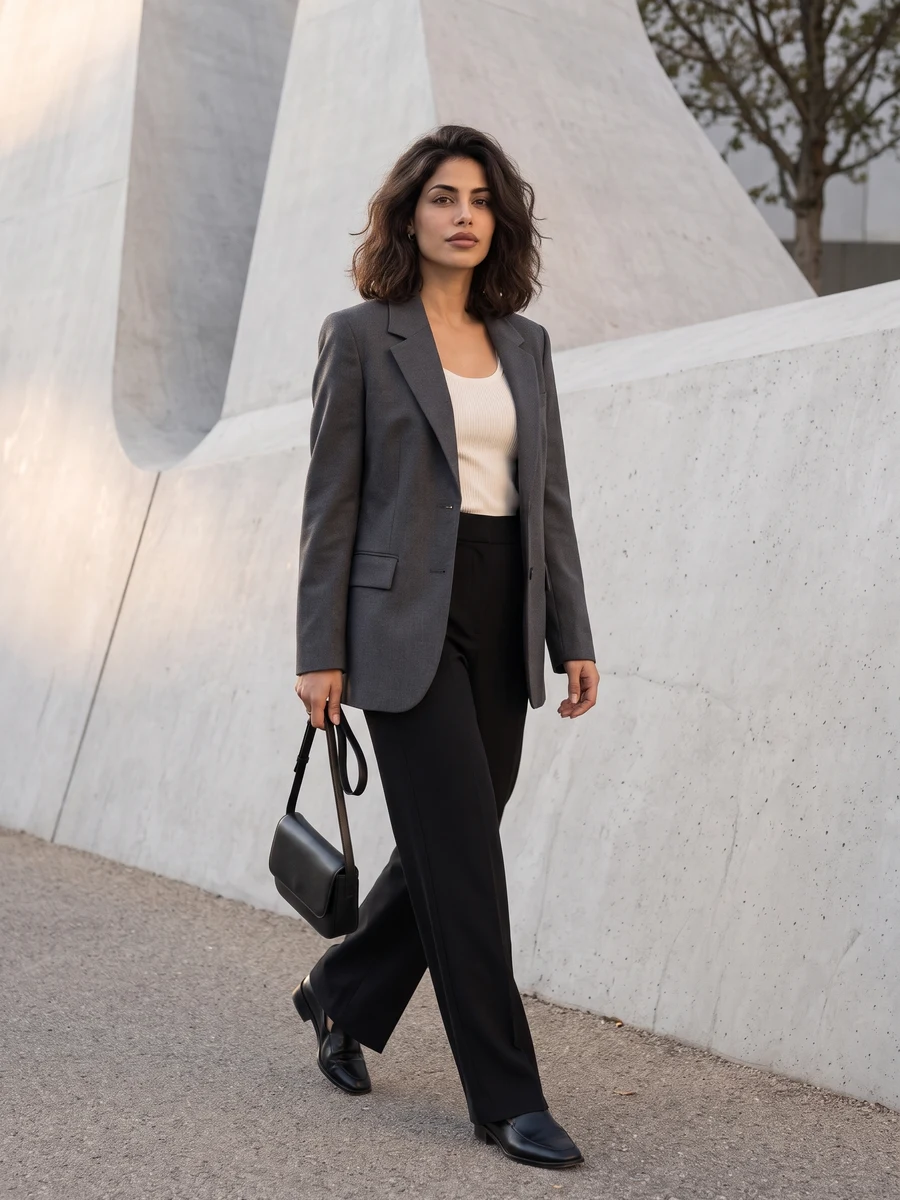 City Editorial Portraits
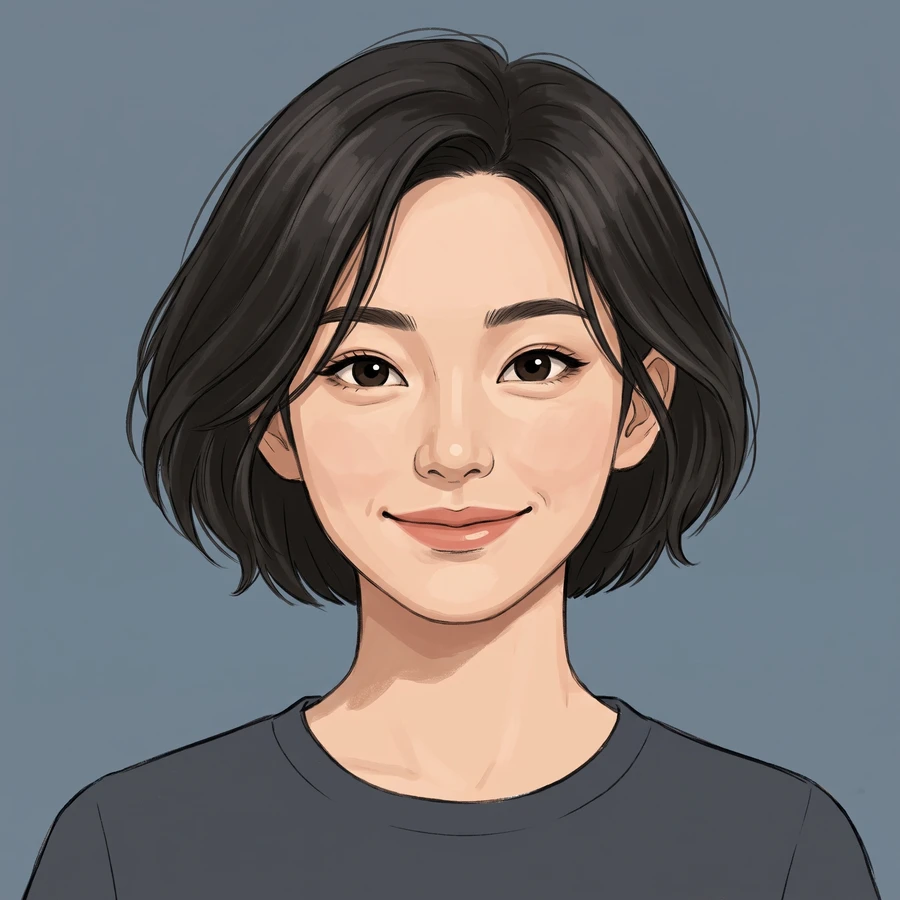 AI Illustrated Avatars
 AI Couple Portraits
 AI Wedding Portraits
 AI Birthday Photoshoot
 Christmas PhotoshootAI Portrait Studio